Most writers discover Artifacts by accident.
Claude generates a draft, it appears in a side panel, they copy the text and move on. They’ve just used one of Claude’s most powerful features as a clipboard.
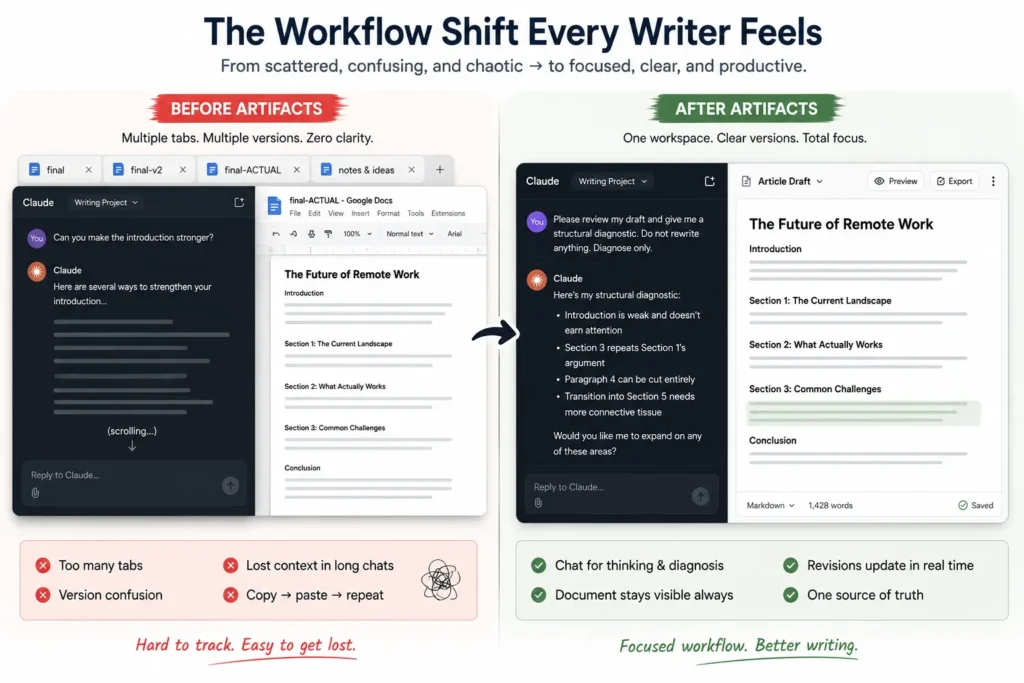
I did the same thing for two months — drafting in Google Docs, pasting into Claude chat, copying revisions back into new documents. By the third pass I had four open tabs, three versions named “final,” “final-v2,” and “final-ACTUAL,” and no reliable way to tell which paragraph belonged to which draft. Then I watched a 4,000-word client article go from structurally broken to publishable in a single session — without copy-pasting once. The Artifact panel was open the entire time. The chat held the diagnostic conversation. The Artifact held the work.
Artifacts are not an output format. They are a working environment. That distinction changes everything.
This guide covers how Artifacts actually work, how they connect to the Projects setup I covered in the previous article — what they are, how they connect to your Projects setup, and the Artifact Editing Loop I run on every professional piece. If you haven’t configured your Projects infrastructure yet, start with the Claude Projects for Writers walkthrough first.
What Claude Artifacts Actually Are
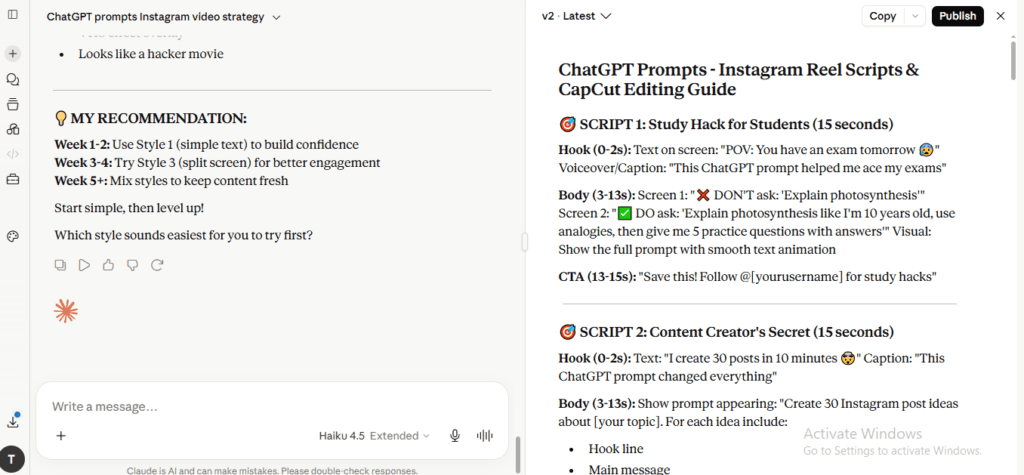
An Artifact is a standalone output that lives in a dedicated panel to the right of your conversation. You see both simultaneously. The Artifact stays visible and editable regardless of how far the conversation progresses — it doesn’t get buried in chat history.
For writers, the relevant types are markdown documents (drafts, articles, newsletter issues), formatted HTML (client deliverables, proposals), and structured reports. Artifacts are available on all plans including free as of February 2026 (Anthropic’s documentation). If you don’t see the panel, go to Settings → Feature Preview and enable it.
Chat is the conversation. Artifact is the deliverable.
Chat Panel vs Artifact Panel: The Distinction That Changes Everything
Most AI Claude writers use the Artifact as a display area — Claude generates something, they read it, they copy it. The Artifact stays passive.
Flip that.
The chat is for thinking: questions, structural debates, diagnostic feedback. The Artifact is for making: the document that gets built, revised, and exported. Every revision instruction you give in chat updates the Artifact directly. No version confusion. No hunting through scrolling conversation for the paragraph Claude changed three exchanges ago.
| Chat Panel | Artifact Panel | |
|---|---|---|
| Role | Conversation | Working document |
| Job | Diagnosis | Execution |
| Nature | Temporary thinking space | Persistent workspace |
The chat is where I think. The Artifact is what I build.
How Artifacts Connect to Your Projects Setup
Projects and Artifacts solve different problems. Projects handle persistent context — voice, audience, rules, Knowledge Base files. Every chat inside a configured Project arrives pre-loaded with that infrastructure. Artifacts handle the working document: the actual piece you’re producing in that session.
In practice: you open a chat inside your writing Project (VAP Framework loaded — Voice, Audience, Project), then work on the article inside the Artifact panel. The Project’s custom instructions shape everything Claude writes in the Artifact. The voice stays consistent because the infrastructure is doing its job.
Without a Project, the Artifact output is technically competent and completely generic. It sounds like Claude, not like you. Projects are the environment. Artifacts are the workspace inside it.
Why Claude Artifacts Matter More for Writers Than Most Users
Most Claude users produce outputs that don’t need revision — a summary, a code snippet, a data analysis. Generate, use, move on. Writing doesn’t work like that.
Writing is revision. Getting from raw draft to publishable piece requires multiple passes, each targeting a different layer. Most AI workflows collapse that into one step: ask, generate, copy, publish. Claude Artifacts for writers solve a specific problem: how do you run a multi-stage revision process with an AI without losing the work or your voice? The answer is separating the diagnostic conversation (chat) from the working document (Artifact) — and that separation is what makes the Artifact Editing Loop possible.
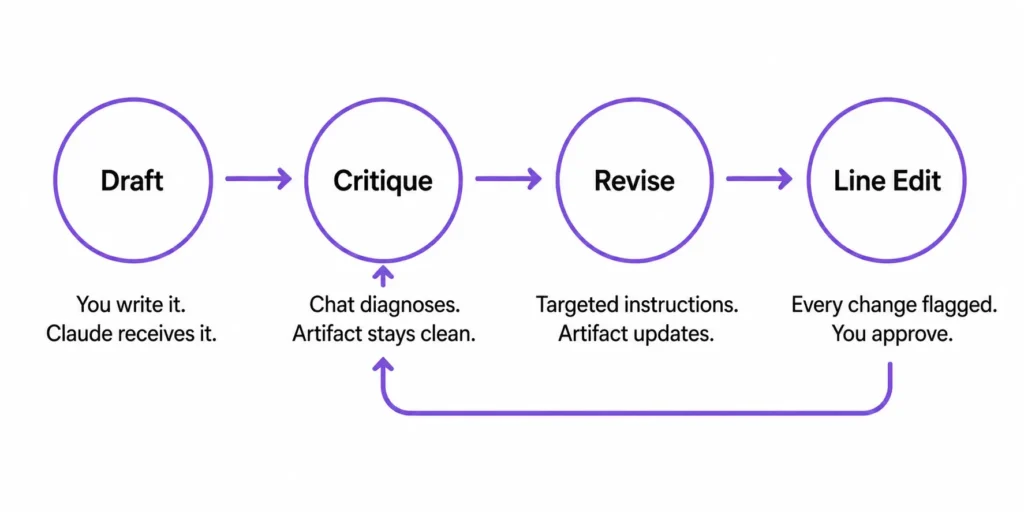
The Artifact Editing Loop: Draft → Critique → Revise → Line Edit
This is the reason Claude Artifacts matter for writers. Without a structured loop, you’re using a power tool as a paperweight.
Stage 1 — Draft
Write your own first draft. Anywhere outside Claude.
This is a rule I rarely break: the first draft is where your voice gets established. If Claude writes it, you spend the entire revision process excavating your perspective from underneath Claude’s default cadence. Once the draft is done, paste it into the chat with this instruction:
“Take my draft below and place it in an Artifact as a formatted markdown document. Do not change any wording, structure, or punctuation. Reproduce it exactly.”
Without that instruction, Claude will clean up your draft on the way to the Artifact — smoothing your fragments, softening your edge. You’ll open the Artifact and find a polished version of something that’s no longer yours.
Stage 2 — Critique
The Artifact is live. Now run the diagnostic — in the chat, not in the Artifact.
“Act as a developmental editor. Read the Artifact draft and tell me: which sections are structurally weak, where the argument loses momentum, and which paragraphs could be cut without losing anything essential. Do not rewrite anything. Diagnose only. Be specific — give me section names or opening lines.”
The “diagnose only” instruction is what protects you. Without it, Claude rewrites instead of diagnosing.
I ran this on a 2,800-word piece for a financial services client. Claude identified that my third section was doing the same argumentative work as my first — I’d restated the opening claim in different language and called it development. I’d read that piece four times and missed it. The diagnostic caught it in thirty seconds.
Stage 3 — Revise
Give targeted revision instructions in the chat. Claude updates the Artifact. You review in the preview panel.
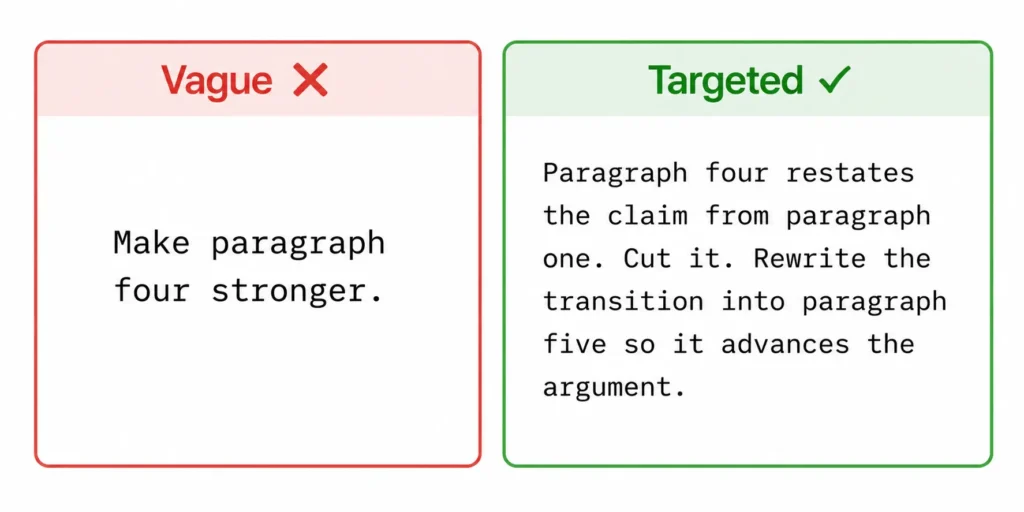
Targeted means surgical:
- Vague: “Make paragraph four stronger.”
- Targeted: “Paragraph four restates the claim from paragraph one. Cut it. Rewrite the transition into paragraph five so it advances the argument.”
Revise structure before revising sentences. Rearranging sentences in a structurally broken section is wasted effort.
Stage 4 — Line Edit
“Line-edit this Artifact for sentence rhythm, clarity, and voice consistency. Do not change the argument, structure, or any factual claims. Flag every change so I can review each edit individually.”
The “flag every change” instruction is one I don’t skip — it keeps you in control of every word-level decision. After the line edit, I do a quick manual pass: forbidden words, opening sentences, paragraph lengths, three random paragraphs read aloud. If I’d say it, it stays. If I wouldn’t, it goes back.
Then export. Copy the Artifact, paste into the CMS. Done.
Live Artifacts: What Changed in April 2026
In April 2026, Anthropic introduced Live Artifacts — outputs that refresh with current data each time you reopen them. I’ve used them across a few client operations. They’re useful for editorial tracking and project management, less useful for actual writing and revision. For single articles, standard Artifacts are all you need. Where Live Artifacts earn their place is when you’re managing multiple content assets and need a running view of what’s done, what’s pending, and what’s due — the kind of overhead that usually lives in a spreadsheet.
Save every Artifact immediately after creation. An unsaved Artifact disappears when you close the chat.
Sharing and Exporting Artifacts
The Share button generates a claude.ai link. For standard document Artifacts, anyone can open it — no Claude account required. Useful for client review: share a formatted draft via link instead of a Word attachment. For professional delivery, copy the Artifact content into your CMS or client portal. Markdown carries over cleanly.
One limitation: Artifacts calling Claude’s API at runtime require authentication. Standard document Artifacts don’t. For client-facing work, stick to document or HTML Artifacts.
Where Artifacts Break Down for Writers
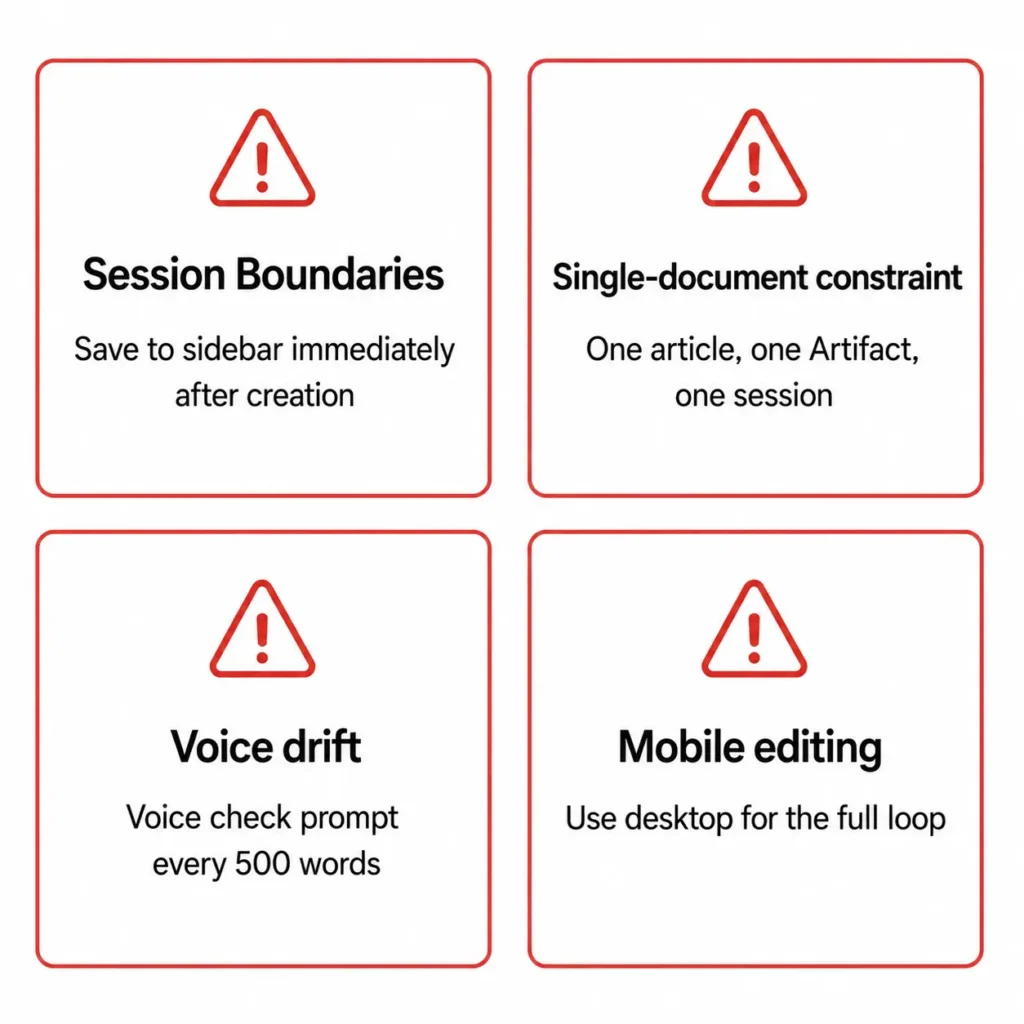
Session boundaries. Unsaved Artifacts disappear when you close the chat. Save to the sidebar immediately.
Single-document constraint. Artifacts work for individual pieces, not interconnected systems. Each article gets its own Artifact, in its own session, inside its own Project.
Voice drift in long sessions. The longer a session runs, the more Claude’s default cadence bleeds in. I run a quick voice check every 500 words: “Does the last section still match the rhythm of the opening?”
Mobile editing. The Claude app supports viewing Artifacts but the editing experience is substantially better on desktop. For the Artifact Editing Loop, use the web or desktop app.
The Honest Assessment
The Artifact Editing Loop replaces the part of editing that used to require a second human brain — the developmental editor who reads your draft before you’re too close to see it yourself. Claude isn’t that editor. But the structured diagnostic prompt, run against a clean Artifact draft, produces feedback specific enough to act on and honest enough to trust.
What it doesn’t replace: your judgment, your instinct for what sounds like you, your responsibility for every word that publishes.
Projects create the context. Claude Artifacts create the output. Together they form a complete writing workflow — not just a tool.
Frequently Asked Questions
What is the difference between Claude Artifacts and a regular Claude response? A regular response appears inline in the chat and scrolls away as the conversation continues. If you want to revise it, you paste it back in — and now you have two versions with no clear way to track what changed. An Artifact lives in a separate panel that stays visible regardless of conversation length. Revisions update the Artifact directly. For a single short response the difference is minimal. For multi-pass revision work, it’s everything.
What Artifact types are most useful for writers? Markdown for drafts and articles — fastest to create, cleanest to export. HTML for formatted client deliverables. Start with markdown.
Do Artifacts save automatically? No. Unsaved Artifacts disappear when you close the chat. Save immediately after creation, before any revision work.
Can I use Artifacts without Claude Projects? Yes, but the output will lack voice calibration and project context. The Artifact will be technically competent and generically voiced. Fine for personal experimentation. Not for professional client work.
Can Claude edit one specific paragraph without changing the rest? Yes — but be explicit: “Revise only the third paragraph. Leave everything else exactly as written.” Vague revision instructions produce broad changes. Specificity is the key at every stage of the loop.
How is the Artifacts editing workflow different from editing in Google Docs? Different tool, different job. Artifacts keep Claude’s diagnostic feedback and the working document in the same view simultaneously. Google Docs is better for final polish, tracked changes, and client collaboration. The professional workflow uses both: Artifacts for AI-assisted revision, then export to Docs for final delivery.