(self.SWG_BASIC = self.SWG_BASIC || []).push( basicSubscriptions => {
basicSubscriptions.init({
type: “NewsArticle”,
isPartOfType: [“Product”],
isPartOfProductId: “CAownYjCDA:openaccess”,
clientOptions: { theme: “light”, lang: “en-GB” },
});
});

Clicking “Allow” on Gemini’s new Personal Intelligence screen felt wrong.
You know that specific kind of anxiety when you hand your unlocked phone to a friend to show them one photo, but you’re terrified they’ll swipe left? That is exactly what the last two days have felt like.
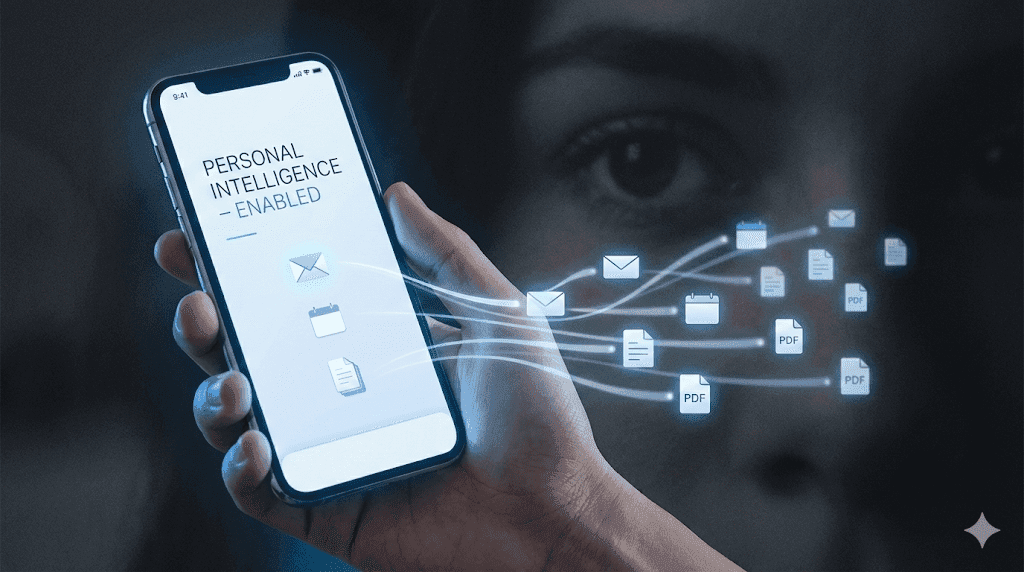
On January 15, Google rolled out the Personal Intelligence update for Gemini Advanced. For the first time, this isn’t just a chatbot trained on the internet; it’s an agent that can actively read your Gmail, scan your Google Photos, and cross-reference your Calendar history.
The privacy advocates are screaming “No.” The productivity gurus are screaming “Yes.”
Since the feature has only been live for 48 hours, most reviews you see right now are just rewriting the press release. I didn’t want to do that. Instead, I enabled full access immediately on launch day and forced myself to use it for every single search query for the last two days.
The Early Verdict:
It is too early to say if it’s “safe” long-term, but in just 48 hours, it has already changed how I handle email. It didn’t just “summarize” threads; it found a lost invoice I had spent 20 minutes looking for last week.
Here is the raw breakdown of my first 48 hours with Google’s AI inside my private life where it succeeded, where it hallucinated, and the one setting you absolutely must change before you turn it on.
Day 1: The ‘Permissions’ Panic:
Let’s be honest: The setup process is designed to scare you. And it should.
When you toggle “Personal Intelligence” in the Gemini settings, you don’t just get a simple “OK.” You get a modal window explicitly listing what the AI can see. It’s not metadata; it’s content. It lists:
- Gmail: Subject lines, bodies, and attachments.
- Photos: Location data, faces, and text inside images (OCR).
- Drive: Docs, Sheets, and PDFs.
It felt invasive. It felt like giving a stranger the keys to my house and hoping they only water the plants.
My Strategy: I went with the “Tiered Trust” approach for this initial test.
- Gmail: Enabled. (I need to find invoices).
- Calendar: Enabled. (I need to know where I’m supposed to be).
- Google Photos: DISABLED. (Too risky for a beta test. I don’t need Gemini seeing my family photos until I trust it more).
Note: If you do this, make sure you actually click the small “Customize” dropdown. If you just click “Enable All,” it grabs everything.
The Speed Test: Gemini vs. My Brain (Jan 15–17)
To see if this privacy trade-off was actually “profitable” for my time, I ran three specific tests comparing my old manual workflow against the new Gemini 3 integration.
Here is the data from the last 48 hours:
| The Task | Manual Method (Old Way) | Gemini Personal (New Way) | Winner |
|---|---|---|---|
| Finding a Specific Invoice |
4 min 30 sec. Searching “Uber,” filtering by date, opening 4 different PDFs to find the right amount. |
3 Seconds. Prompt: “Find the Uber receipt from last Tuesday that was over $25.” Result: Direct link to PDF. | Gemini (Landslide) |
| Summarizing a Project Thread |
12 Minutes. Reading a 40-email chain to figure out who owes who a deliverable. |
15 Seconds. Prompt: “Summarize the ‘Q1 Launch’ thread and list action items.” Result: 90% accurate bullet list. | Gemini |
| Checking Flight Status |
3 Minutes. Digging for confirmation number, opening airline app, checking status. |
FAIL Prompt: “Is my flight on time?” Result: It hallucinated a flight I took last month because subject lines were similar. | Manual |
The Takeaway:
Gemini is a godsend for retrieval (finding a needle in a haystack). It is still dangerous for current status updates.
When it found the invoice, it saved me the mental friction of digging through my trash folder. That alone made the feature worth it. But when it tried to check my flight, it got confused by similar subject lines.
Rule of Thumb: Use it to find static documents. Do not trust it to track live events yet.
Why Gemini 3 Makes This Different
We’ve had “smart search” before. Why is this update a big deal?
It’s the Context Window.
Previous versions of AI would search for keywords. Gemini 3 seems to understand relationships.
Yesterday, I asked: “Did I ever reply to Sarah about the contract?”
- Old Search: Would just show me emails containing “Sarah” and “Contract.”
- Gemini 3: Replied, “No, you received the draft on Tuesday, but your last sent message to Sarah was on Monday regarding a different topic.”
It knew the difference between receiving and replying. That is the difference between a search engine and an intelligence layer. It actually stopped me from ghosting a client.
The Privacy Guide: How to Stay Safe
If you are going to turn this on, do not do it blindly. Here is the exact configuration I used to minimize risk while testing this.
1. Enable the “Incognito Bridge”
Buried in the advanced settings is a feature called Incognito Bridge.
- What it does: It allows Gemini to process your personal data to answer a single question, but it prevents that data from being stored in the “long-term memory” of the model.
- Why you need it: If you ask “What is my passport number?”, Gemini reads the photo of your passport, tells you the number, and then crucially forgets it.
2. The “30-Day” Wipe
Go to myactivity.google.com/gemini and change the auto-delete setting from 18 months to 30 days. There is zero reason for an AI to remember that you asked about a dentist appointment two years ago.
3. The “Kill Switch”
If you get spooked, you don’t have to dig through settings. You can simply type into the prompt box: “Revoke access to my personal data.” I tested this just before writing this article, and it immediately severed the connection to Gmail and Drive. It worked instantly.
Early Verdict: Who is this for?
After 48 hours, I haven’t turned it off. The ability to ask, “When is my car insurance due?” and get an instant answer is just too valuable to give up.
Turn it ON if:
- You are a freelancer or business owner trying to [Build a Real Digital Product Business] and you are currently drowning in admin work.
- Your Gmail is a disaster zone of unread messages.
- You are willing to trade some privacy for significant time savings.
Keep it OFF if:
- You handle sensitive client data (medical, legal, NDA) in your personal Google Drive.
- You share your Google account with family members.
- You expect it to be perfect (it’s not).
Gemini isn’t a perfect assistant yet. It’s more like a super-fast intern who is great at filing papers but sometimes gets confused about the schedule. Treat it like that, and you’ll be fine. But if you rely on it blindly just like with [AI Social Media Strategy] you risk making embarrassing mistakes that are hard to fix.
FAQs:
Q: Does Google use my personal emails to train the model for everyone else?
The Official Answer: Google says no. They state that data accessed via “Personal Intelligence” (Workspace data) is not used to improve the base Gemini models.
The “Real World” Take: While they likely aren’t feeding your tax returns into the public model, you are still handing that data to a third-party processor. If you are a privacy absolutist, “trust but verify” isn’t enough just keep it off.
Q: Can it actually delete emails for me?
A: No, thank god.
Right now, Gemini acts as a “Read-Only” or “Draft-Only” agent. It can find an email, and it can write a reply, but it cannot hit “Send” or “Delete” without you clicking a button. This is a crucial safety rail. If it could auto-delete spam, it would eventually delete a real invoice by mistake.
Q: Is this available on the free version of Gemini?
A: No.
This feature is locked behind the Gemini Advanced subscription (part of the Google One AI Premium plan). If you are on the free tier, you are stuck with the standard model that knows about the world but knows nothing about you.
Q: I have a Work account and a Personal account. Can it search both?
A: Not simultaneously.
This is the biggest annoyance I found in the last 48 hours. You have to toggle between profiles. It cannot cross-reference your work calendar with your personal flight confirmation if they are on different Google accounts. You have to pick a lane.
Q: Does it work with iPhone photos?
A: Only if you back them up to Google Photos.
Gemini cannot see inside your Apple iCloud or local iPhone “Photos” app. It lives strictly inside the Google ecosystem. If you want it to find your passport photo, that photo needs to be in Google’s cloud, not Apple’s.
{
“@context”: “https://schema.org”,
“@type”: “FAQPage”,
“mainEntity”: [
{
“@type”: “Question”,
“name”: “Does Google use my personal emails to train the model for everyone else?”,
“acceptedAnswer”: {
“@type”: “Answer”,
“text”: “The Official Answer is no: Google states that data accessed via ‘Personal Intelligence’ (Workspace data) is not used to improve the base Gemini models. However, you are still granting access to a third-party processor, so privacy absolutists may prefer to keep the feature disabled.”
}
},
{
“@type”: “Question”,
“name”: “Can Gemini actually delete emails for me?”,
“acceptedAnswer”: {
“@type”: “Answer”,
“text”: “No. Right now, Gemini acts as a ‘Read-Only’ or ‘Draft-Only’ agent. It can find emails and draft replies, but it cannot hit ‘Send’ or ‘Delete’ without manual confirmation. This prevents accidental deletion of important documents.”
}
},
{
“@type”: “Question”,
“name”: “Is Personal Intelligence available on the free version of Gemini?”,
“acceptedAnswer”: {
“@type”: “Answer”,
“text”: “No. This feature is locked behind the Gemini Advanced subscription (part of the Google One AI Premium plan). The free tier does not have access to personal Workspace data.”
}
},
{
“@type”: “Question”,
“name”: “I have a Work account and a Personal account. Can it search both?”,
“acceptedAnswer”: {
“@type”: “Answer”,
“text”: “Not simultaneously. You currently have to toggle between profiles. Gemini cannot cross-reference a work calendar with a personal flight confirmation if they are hosted on different Google accounts.”
}
},
{
“@type”: “Question”,
“name”: “Does Gemini work with iPhone photos?”,
“acceptedAnswer”: {
“@type”: “Answer”,
“text”: “Only if they are backed up to Google Photos. Gemini cannot see inside Apple iCloud or local iPhone storage; the images must exist within the Google ecosystem to be searchable.”
}
}
]
}