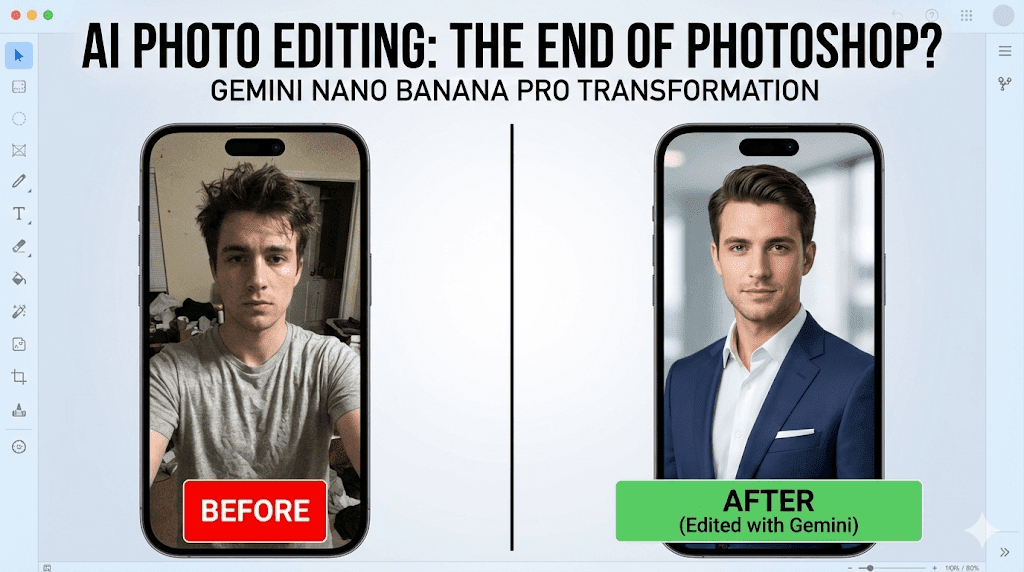
I needed a professional headshot for my LinkedIn profile, but in my only good photo, I was wearing a wrinkled grey t-shirt. I didn’t have $200 for a photographer, and I definitely didn’t have a suit.
I uploaded that photo to Gemini Nano Banana Pro and typed one sentence: ‘Change my t-shirt to a navy blue business suit.’ Four seconds later, I had a headshot that looked like it was taken in a studio. Here is exactly how I did it, and how you can do it for free.
Enter AI photo editors that actually understand what you’re saying. No sliders. No layer masks. No watching your cursor turn into seventeen different shapes while you panic-click.
Gemini Nano Banana Pro is leading this shift. It’s a photo editor you can talk to like a person. You upload an image, type what you want changed in plain English, and it happens. Want your casual t-shirt to become a suit? Say it. Need to teleport yourself to Paris? Ask. There’s a stranger photobombing your beach pic? Gone.
This isn’t about becoming a better editor. It’s about not needing to be one at all.

The “Conversational Edit” Feature – Edit Photos by Talking to AI:
Let’s get specific about what Gemini conversational image editing actually means, because “conversational” gets thrown around like confetti these days.
Here’s the workflow: You upload your photo into the Gemini app. Then, instead of hunting through menus or dragging sliders, you type exactly what you want. “Make my shirt look formal.” “Remove the background and add a city view.” “Get rid of the person on the left.”
Gemini reads your instruction, figures out what you mean, and applies the edit. Right there. No secondary screens. No “are you sure?” pop-ups. It just does it.

Real examples people are using:
- “Change my hoodie to a blazer”
- “Put me in front of a mountain range”
- “Make the lighting warmer”
- “Remove the trash can behind me”
This is fundamentally different from traditional editing. In Photoshop, you’d select a tool, adjust settings, apply the effect, undo it because it looks wrong, adjust again, and maybe get it right on attempt four. In Gemini, you describe the outcome. The AI handles the technical execution.
Why does this matter for beginners and creators? Because the barrier isn’t your skill anymore it’s your ability to describe what you want. And you already know how to do that. You’ve been describing things your whole life.
The catch (and this is important): You need to select the “Thinking” model in Gemini’s settings. Look for “Nano Banana Pro” in the model selector. Without this, the editing features won’t activate. Most people miss this step and then wonder why nothing’s happening.
3 Real-World Workflows (Step-by-Step):
Let’s walk through actual scenarios where this gets used.
Workflow A: The LinkedIn Fix (Change Casual Shirt to Suit):
The problem: You have a great photo of yourself good lighting, natural smile, nice background but you’re wearing a t-shirt. And LinkedIn isn’t exactly a t-shirt platform.
You could retake the photo. Or you could spend three minutes doing this:
Upload: Your casual photo (the one where you’re wearing that grey t-shirt)
The Prompt: “Change my t-shirt into a dark navy formal suit with a white shirt underneath”

The Result: You’re now wearing a suit. The fabric looks natural. The collar sits where it should. The shadows and lighting match the rest of the photo.
If the color feels off or the fit looks weird, you can refine it: “Make the suit darker” or “Adjust the jacket to fit better.”
This is exactly how to change clothes in photos with AI free no subscription, no complicated masking, no pretending you know what “feathering” means. Just upload and ask.
Perfect for LinkedIn profiles, resume headshots, or anywhere you need to look put-together without actually being put-together.
Workflow B: The Travel Fake (Change Background to Paris):
Background replacement is huge right now. People use it for social content, dating apps, creative projects, or just because it’s fun to pretend you went somewhere you didn’t.
Here’s how it works:
Upload: A photo of yourself with any background (your bedroom, a parking lot, whatever)
The Prompt: “Remove background Gemini 3 Pro” (this strips out everything behind you), then follow up with “Place me in front of the Eiffel Tower at sunset”

The Result: You’re standing in Paris. The lighting adjusts to match the golden hour. Shadows fall in the right direction. The edge blending looks natural, not like a bad green screen.
A few tips for realism: Pay attention to lighting. If your original photo has harsh midday sun and you’re asking for a sunset background, it’s going to look off. Mention lighting in your prompt:
“Match the lighting to late afternoon” or “Make it look like evening.”
One ethical note, because it matters: There’s a difference between “look at this fun edit I made” and posting it like you actually traveled there. Context matters. If you’re using it for creative content or obviously playful posts, great. If you’re trying to impress someone by pretending you have a life you don’t maybe rethink that.
Workflow C: The “Unwanted Guest” Removal (Removing People):
You’re at the beach. You get the perfect shot. Then you zoom in and notice some random stranger doing yoga in the background.
Old solution: Accept it or spend an hour learning the clone stamp tool.
New solution:
Upload: Your vacation photo (with the unwanted photobomber)
The Prompt: “Remove the person behind me on the right”

The Result: They’re gone. Gemini fills in the background sand, water, whatever was behind them and it looks like they were never there.
If the fill doesn’t look quite right, refine it: “Make the background fill more natural” or “Blend the sand better.”
What’s impressive here is how Gemini understands context. It doesn’t just blur out the person. It reconstructs what should be there based on the surrounding environment. If you’re at the beach, it generates more beach. If you’re in front of a building, it continues the architecture.
Compare this to manual object removal tools, where you’re literally painting over things and hoping the algorithm guesses correctly. Gemini’s approach is smarter because it’s working from understanding, not just pattern matching.
Gemini vs Magic Editor – What’s the Real Difference?
Let’s clear something up, because people keep confusing these two.
Google Photos has a feature called Magic Editor. It’s built into the Photos app. You tap an object, drag it, and Google’s AI adjusts the scene. It’s impressive for what it is quick, touch-based edits on your phone.
But here’s where it’s limited: Magic Editor works with presets and touch controls. You select an object, move it, or apply one of a few effects. That’s it. You can’t have a conversation with it. You can’t say “make this look like a professional headshot” and have it understand what that means.
Gemini conversational image editing is different. It’s prompt-based. You describe what you want in sentences. The AI interprets your intent and makes complex edits that would require multiple tools in Magic Editor or wouldn’t be possible at all.
Why do creators prefer Gemini Nano Banana Pro photo editor? Because it handles abstract requests. “Make this photo feel more cinematic” or “Give this image a vintage look” aren’t things you can do with sliders. They require judgment. Gemini makes those judgment calls.
That said, Magic Editor still makes sense for quick, on-the-go edits. If you’re on your phone and want to move an object slightly or erase something fast, Magic Editor is right there. It’s convenient.
But for deeper edits background replacement, clothing changes, complex object removal Gemini wins. It’s the difference between a tool that helps you edit and a tool that edits for you.
Which is better for beginners vs power users? Beginners should start with Gemini because it removes the learning curve entirely. Power users will probably use both Gemini for creative heavy lifting, Magic Editor for quick fixes.
FAQ – Does Gemini Keep My Private Photos?
This is the question everyone asks but feels awkward bringing up.
Here’s how photo data works in Gemini: When you upload an image for editing, it’s processed temporarily. The AI analyzes it, makes the edits, and returns the result. According to Google’s current policies, these photos aren’t stored long-term for training purposes unless you explicitly opt in.
Important distinction: Temporary processing (what happens when you edit) vs long-term storage (keeping your photo in a database forever). Gemini does the first. It doesn’t automatically do the second.
You also have control. You can delete uploads from your Gemini history. You can turn off activity tracking in your Google account settings. If privacy is a concern and it should be these options exist.
Best practices when editing personal images:
Don’t upload photos with sensitive information visible (documents, IDs, financial info)
- Review Google’s privacy settings for your account.
- If you’re editing professional or confidential content, consider whether cloud-based AI is appropriate.
- Delete your Gemini activity history regularly if you’re processing private photos.
For professionals: If you’re handling client photos or sensitive material, check your organization’s data policies before using cloud-based editing tools. Some industries have strict rules about where data can be processed.
For casual users: If you’re editing vacation photos or LinkedIn headshots, the risk is minimal. Just be aware of what you’re uploading and use the privacy controls available to you.
AI Photo Editing Without Limits:
No Photoshop subscription. No design courses. No expensive software that crashes when you have ten layers open.
Gemini Nano Banana Pro is changing how regular people edit photos because it removes the technical barrier. You don’t need to know how editing works. You just need to know what you want.
The real shift here isn’t that AI can edit photos it’s that AI can understand what you’re asking for without you speaking its language. You talk like a human. It thinks like a designer.
Start simple. Upload a photo. Try one prompt. See what happens. The more you experiment with conversational commands, the more you’ll realize what’s possible. “Make this look professional.” “Fix the lighting.” “Change the background to something interesting.”
AI doesn’t make creativity exclusive to people with technical skills anymore. It makes it accessible to everyone who can describe what they want to see.
And that’s everyone.