I just spent the 48 hours tearing down the massive April 2026 OpenAI updates. Between the release of ChatGPT Images 2.0 and the new Codex desktop features, the old way of prompting is dead. Here is my raw, technical breakdown of what’s actually new, the exact syntax I use, and how your workflow needs to adapt.

What’s New in GPT: The April 2026 Rollout
We all knew the GPT-5 architecture was powerful, but the updates that hit between April 16 and April 21, 2026, fundamentally changed how the model interacts with us. There are two massive updates you need to execute on right now:
First, ChatGPT Images 2.0. OpenAI didn’t just bump the resolution; they introduced images with thinking. When given more time to think, the model can actively plan and refine image outputs before generating them. It uses this extra processing time to self-correct text, verify object placement, and build the layout. (Note: Images with thinking is available on all paid ChatGPT plans. It is available when you select the Thinking and Pro models).
Second, the Codex Update. OpenAI literally gave the AI a mouse. Codex can now operate your macOS desktop apps, click, type, and remember your personal workflow preferences across days or weeks.
What Changed Since the Initial Release?
When ChatGPT Images 2.0 launched on April 21, 2026, the headline feature was simple: image generation that could reason before rendering.
After several weeks of testing, the biggest real-world improvement isn’t image quality alone. It’s reliability.
Older image models often produced impressive visuals but struggled with typography, structured layouts, and instruction-heavy prompts. Images 2.0 introduced a reasoning layer that allows the model to plan compositions, validate text placement, and follow multi-step creative instructions more consistently before generating the final image. OpenAI describes this as its first image model with thinking capabilities.
In practical use, this means posters, infographics, UI mockups, marketing graphics, and multilingual assets require fewer regeneration cycles than previous generations.
The result is not perfect output every time, but a noticeable reduction in the trial-and-error workflow that previously defined AI image generation.
The Death of the “Slot Machine” Prompt
Let me tell you a story about how frustrating prompting used to be. A few months ago, if I wanted to generate a cinematic image with text on a billboard, it was a slot machine. 90% of the time, the AI would spit out a beautiful, hyper-realistic image where the text looked like an alien language.
If I wanted to fix the spelling, I had to reroll the entire image, praying the AI didn’t completely alter the subject’s face, the camera physics, or the lighting in the process. My asset generation time was averaging 45 minutes per usable image.
The April 2026 updates killed the slot machine. Because ChatGPT Images 2.0 uses the new reasoning engine, the generation process is entirely deliberate. The AI plans the image before drawing it. Asset generation has dropped from 45 minutes to under 3 minutes per asset.
What Actually Improved for Content Creators?
If you’re a blogger, marketer, SEO professional, or small business owner, the biggest upgrade is not artistic quality. It’s production speed.
Images 2.0 is far better at:
- Creating infographic-style layouts
- Rendering readable headlines
- Maintaining consistency across multiple generated images
- Following detailed design instructions
- Producing marketing assets with structured typography
- Handling multilingual content across major global languages
This makes it much more useful for creating featured images, social graphics, lead magnets, presentation slides, and website assets without relying on multiple design tools.
Multilingual Text Rendering: What Actually Works Now
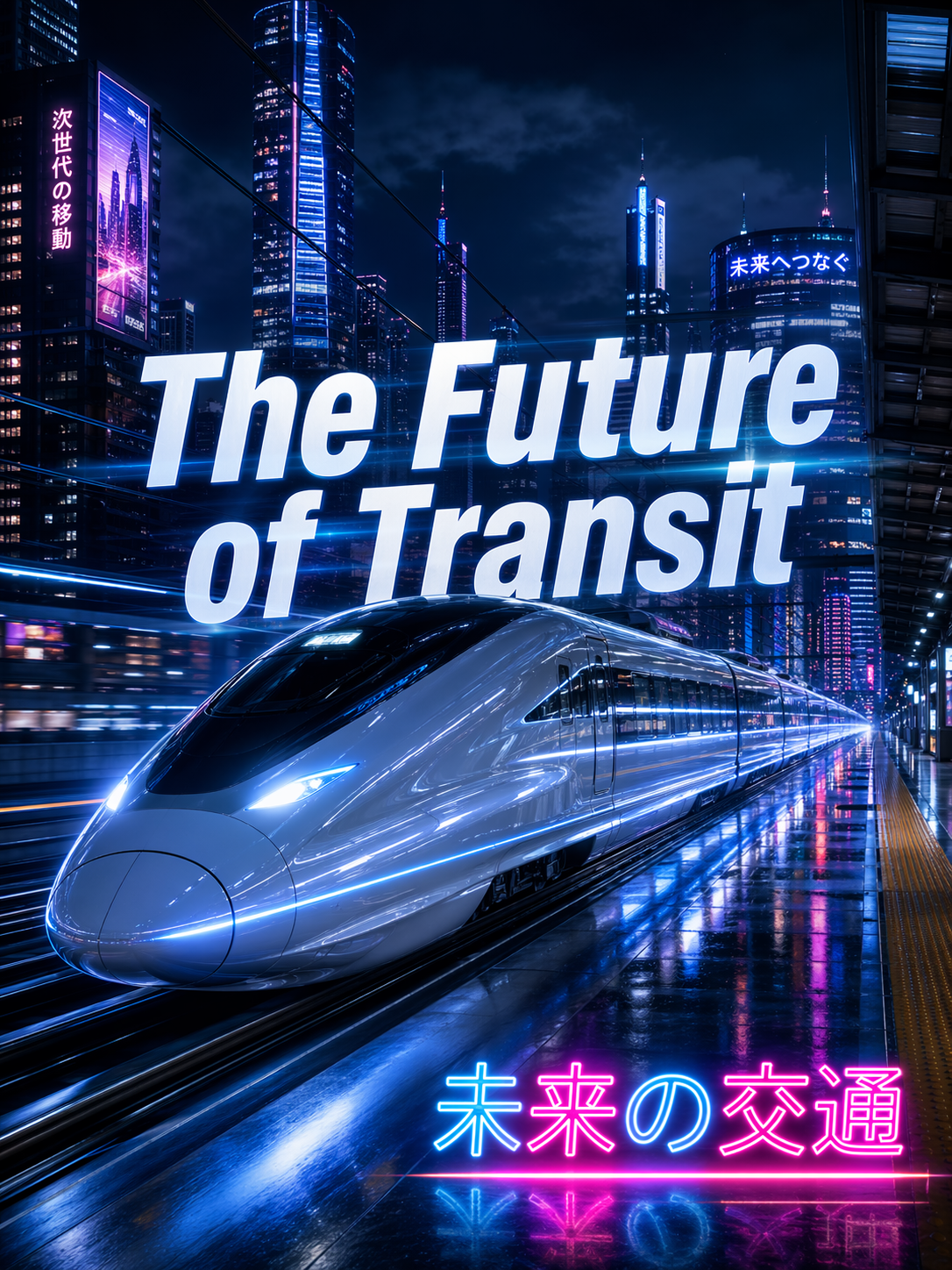
The biggest silent upgrade in ChatGPT Images 2.0 is non-Latin text rendering. If you tried to generate a Japanese manga page or an Arabic billboard in 2025, the models would hallucinate broken characters.
Languages that now render with 99% accuracy in images:
- CJK Scripts: Chinese (Mandarin), Japanese (Kanji/Hiragana/Katakana), and Korean (Hangul).
- Cyrillic: Russian and Ukrainian.
- Complex Scripts: Arabic, Hindi, and Thai.
- Standard Latin: French, Spanish, German, and Portuguese (with perfect accent and diacritic placement).
The New 2026 Workflow (With Exact Syntax)
Because of these updates, how you interact with ChatGPT has to change. You are giving directives to a reasoning engine, not a text predictor.
1. The Flexible Aspect Ratio Recomposition
You are no longer trapped in the old 1:1, 16:9, or 9:16 limitations. ChatGPT Images 2.0 unlocked a massive custom spectrum of aspect ratios ranging anywhere from 3:1 (ultra-wide website banners) all the way to 1:3 (extremely tall vertical formats).
The most important technical shift for your workflow is native recomposition. Older AI models would often generate a square image and then awkwardly stretch or crop it to fit your requested dimensions. The new model natively builds the composition to fit the canvas. If you ask for a 1:3 tall portrait, it intelligently stacks the layout. If you ask for a 3:1 ultra-wide landscape, it expands the environment.
2. The ChatGPT Images 2.0 “Thinking” Prompt
You can now generate actual infographics, multilingual marketing assets, and custom-sized UI designs without the text scrambling or the images cropping weirdly. Your workflow must now include explicit layout instructions.
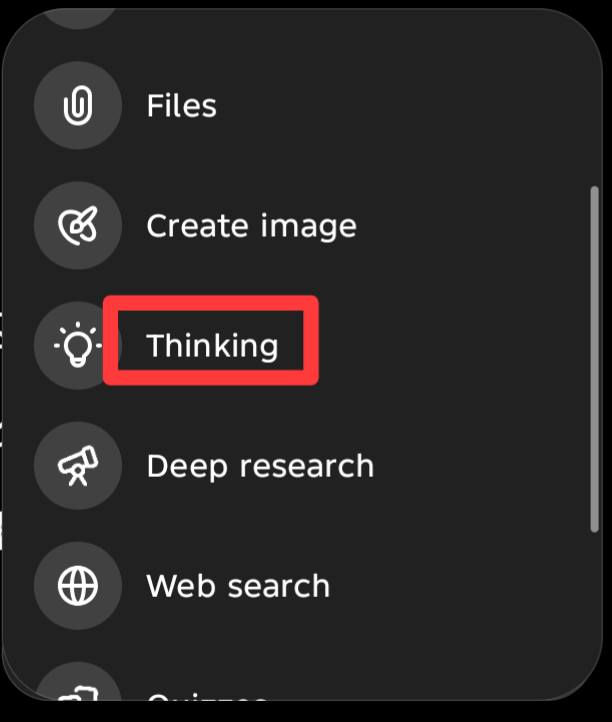
To use this, make sure you have selected either the Thinking or Pro model from your dashboard dropdown.
Here is the exact syntax I use to trigger the reasoning engine for perfect multilingual typography on a custom aspect ratio canvas:
2. The Codex Desktop Execution
With the new Codex integration on macOS, your workflow extends beyond the chat box. Instead of copying and pasting data into ChatGPT, you can instruct the AI to grab context directly from an ongoing project on your screen.
How to execute the Codex workflow:
- Install the standalone OpenAI Desktop app (updated April 16, 2026).
- Open your target application (e.g., your code editor or a Google Sheet with SEO data).
- Open the Codex TUI (Text User Interface) side-conversation panel.
- Run this slash command to force Codex to read your active screen and execute:
/read_screen [Application Name] -> Extract trending keywords -> Open in-app browser -> Cross-reference search volume -> Output structured list.
The AI will autonomously take over the cursor, execute the web search, and return the data.
Frequently Asked Questions
Is ChatGPT Images 2.0 actually better than previous image generation models?
Yes, particularly for structured content.
The biggest improvements are instruction following, typography, multilingual rendering, layout planning, and image consistency. OpenAI’s new reasoning-based generation process allows the model to think through image construction before rendering, which helps reduce common issues such as broken text, misplaced objects, and inconsistent compositions.
For simple artistic images, the difference may be less dramatic. For infographics, marketing assets, educational graphics, and branded content, the improvement is much more noticeable.
Does ChatGPT Images 2.0 fix the misspelled text problem?
Yes. The April 21, 2026 update introduced “images with thinking,” allowing the model to reason through typography, self-correct spelling errors, and natively generate complex text in English, CJK scripts, Arabic, and Cyrillic.
Can ChatGPT Images 2.0 generate custom image sizes?
Yes. The update supports a flexible range of aspect ratios from 3:1 (ultra-wide) to 1:3 (tall portrait). The reasoning engine natively recomposes the layout to fit these dimensions without cropping or stretching the image.
How do I access the new ChatGPT images with thinking?
While the base ChatGPT Images 2.0 is available to all users, images with thinking is available on all paid ChatGPT plans. To use it, simply select the Thinking or Pro models from your model selection menu before generating your image.
What is the OpenAI Codex update?
Released on April 16, 2026, this update allows the Codex AI to operate macOS desktop applications. It can control a cursor, click, type, remember personal workflows, and execute multi-step tasks natively on your computer.
The improvements in structured visuals and multilingual rendering are especially useful for creative projects. For AI-generated anime art and wallpaper inspiration, aianimewallpaper offers a curated collection: https://aianimewallpaper.com/
The focus on reliable structured visual generation is valuable for creators. voloshow provides AI tools for exploring image and video generation workflows: https://voloshow.com/
Great breakdown of the April 2026 OpenAI updates! The reasoning layer in image generation and Codex desktop workflow definitely improve content creation efficiency. We also explore creative ways to convey messages and feelings with audio/music over at Send The Song (https://sendthesong.app).